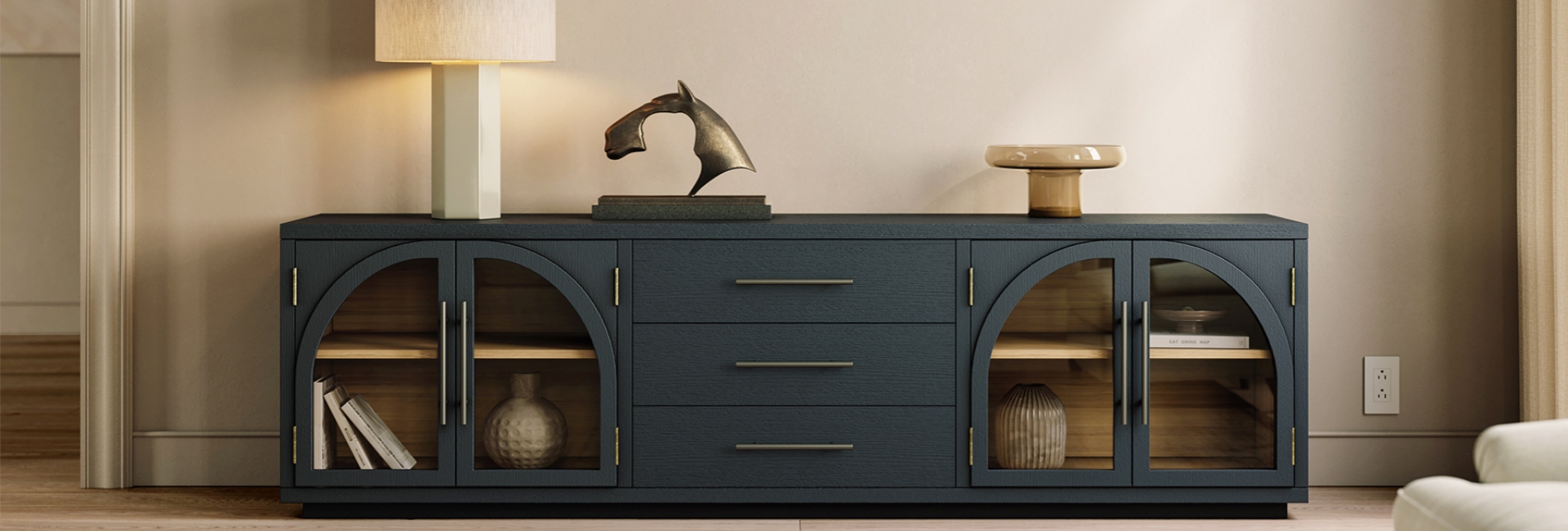
A TV stand with cable management can turn a knot of HDMI, power, and speaker wires into a clean media setup. The solution is not always a basket of zip ties or adhesive clips. A well-designed TV stand gives those cables somewhere to go, with cutouts, channels, enclosed storage, and enough room behind the cabinet to keep everything organized.
Quick answer: A well-designed TV stand with cable management should have multiple rear cord cutouts, enough depth for a power strip and connected devices, enclosed or partially enclosed storage, and ventilation for heat-producing electronics. Match the number of cutouts to the number of devices you plan to connect, and check the TV's actual width and base footprint before choosing a console.
Table of Contents
- What Does Cable Management Mean on a TV Stand?
- How to Organize Wires Behind a TV Stand in Four Steps
- What to Look for in a TV Stand With Cable Management
- TV Stand Cable Management Checklist
- What Material Is Best for a TV Stand?
- TV Stands With Built-In Cable Management
- Wall-Mounted TV vs. TV on a Stand: Two Cable Plans
- Renter-Friendly Ways to Hide TV Cables
- TV Cable Management Safety Tips
- How to Choose the Right TV Stand for Your Setup
- FAQs
- How do I organize cables behind a TV stand?
- What should I look for in a TV stand with cable management?
- Can I hide TV cables without drilling into the wall?
- Should a TV stand be wider than the TV?
- How do built-in cable cutouts and grommets work?
- How many cord cutouts do I need?
- How do I hide a power strip and extra cable length?
- What material is best for a media console with cable management: solid wood or engineered wood?
- Will a media console with closed storage overheat my devices?
What Does Cable Management Mean on a TV Stand?
When a TV stand has built-in cable management, the routing is part of the furniture rather than something added afterward. Cables can leave your TV, soundbar, game console, streaming device, or router through openings in the back of the console instead of hanging over the sides.
Good cable management usually combines three things:
Cord cutouts: Openings in the back panel that let cables pass between compartments or toward the wall outlet.
Grommets: Rings that cover the edges of cable openings and help protect cable jackets from rough surfaces.
Channels or access paths: Grooves or spaces that keep cables close to the back of the furniture instead of letting them hang loosely.
The goal is not simply to hide every wire. It is to create a routing path that is easy to understand and easy to access when you replace a device later.
Cutouts, Grommets, and Channels
Cutouts are the simplest part of a cable-management system. Instead of running an HDMI cable over the side of the console, you can feed it through the back panel and keep the connection hidden from the front.
Grommets can make those openings cleaner and help prevent repeated contact with a sharp or unfinished edge. Channels and larger openings are useful when several cables need to follow the same route.
Access matters, too. A media console may look completely clean when it is first installed, but your setup will probably change. You may replace a streaming box, add a gaming console, or upgrade to a soundbar. A removable access panel or an easily reachable cable opening makes those changes much easier.
Open-Back vs. Closed-Back TV Stands
An open-back TV stand is easy to work with. You have better access to wall outlets, cables, and electronic components, and air can move freely around the equipment. The trade-off is that cords are more visible from the side or behind the console.
A closed-back or partially enclosed TV stand does a better job of hiding cables. With the right cutouts, cables can disappear behind the cabinet as soon as they leave the connected device.
The downside is planning. Before choosing a closed-back stand, check where your wall outlets are located and make sure there is enough clearance for plugs and cable connectors. If you are storing a receiver, game console, or other heat-producing electronics inside the cabinet, look for ventilation openings, slatted doors, or another way for heat to escape.
How to Organize Wires Behind a TV Stand in Four Steps
You do not need an elaborate setup to organize the cables behind a TV stand. A simple routing plan can make a much bigger difference than adding more cable accessories.
Step 1: Inventory Every Device and Cable
Start with everything that will live on the media wall. Depending on your setup, that may include:
TV
Soundbar
Game console
Streaming device
Router
AV receiver
Smart-home hub
List the power and signal cables for each device. Then check the distance from the devices to the cable openings and from the stand to the wall outlet.
A quick sketch of which device sits on which shelf can save time later. It is much easier to plan the cable path before everything is plugged in.
Step 2: Keep the Power Strip Off the Floor
If your power strip is sitting on the floor behind the console, the cable-management problem is only partially solved.
When the stand design provides a suitable mounting area, keep the power strip elevated and secured rather than leaving it on the floor. This keeps the power strip and excess cable from becoming a low pile of cords that collects dust.
Leave a few outlets available for future devices, too. A media setup tends to grow over time.
Step 3: Bundle, Label, and Route the Cables
Group cables by device using reusable Velcro ties rather than pulling disposable zip ties tightly around them.
Route each bundle through the appropriate cutout or cable path. Keep the routing loose enough that cables are not sharply bent or under constant tension.
Labeling both ends of a cable is especially useful for larger setups. If a streaming device stops working months later, knowing which HDMI or power cable belongs to it can save a surprising amount of troubleshooting time.
Step 4: Coil and Store Excess Cable
Extra cable length is one of the easiest ways to create clutter behind a TV stand.
If you have several feet of unused cable, coil the excess loosely and secure it inside a cabinet or another appropriate area behind the console. Avoid creating tight bends or packing heat-producing electronics and cables into an overly small space.
When possible, choose cables that are close to the length you actually need. A shorter HDMI cable is often a simpler solution than trying to manage several feet of unnecessary slack.
What to Look for in a TV Stand With Cable Management
Not every TV stand with cable management solves the problem in the same way. Before choosing one, look beyond the phrase "cable management" and check the actual design.
Match the Number of Cutouts to Your Devices
Count the devices that need a cable route before buying the stand.
For example, a setup with a TV, soundbar, game console, streaming box, and router could require four or five cable paths. A console with only one opening may technically have cable management, but it may not be enough for a more complex setup.
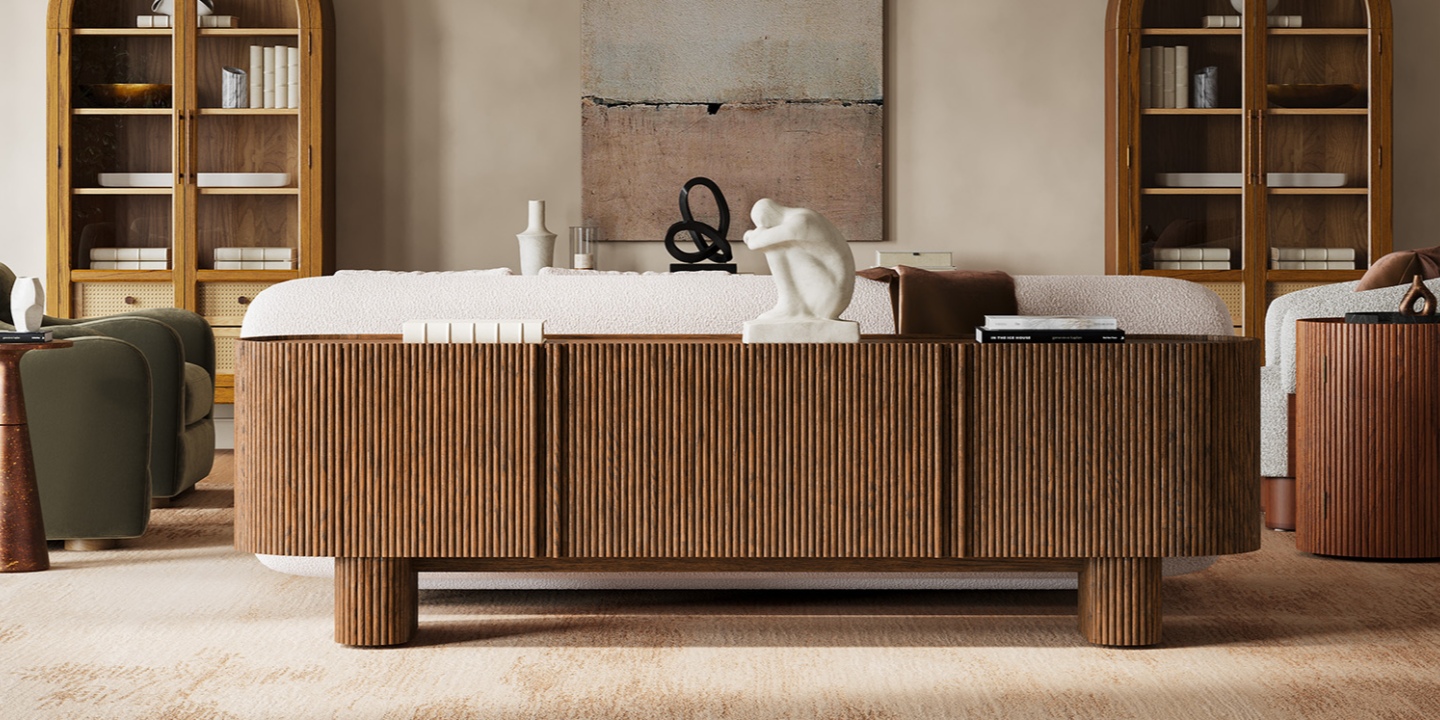
The Marisol 84" Oak Media Console has four cord cutouts in the back panel and is designed for TVs up to 85 inches. Its enclosed storage also helps keep connected equipment and excess cables out of the main sightline.
Look for Enough Depth for the Power Strip
A console can hide cables while still leaving a power strip, adapters, and excess wire exposed behind it.
Check the usable cabinet depth and interior layout. You want enough space for the equipment you actually own, with room for cable connectors and airflow.
If you plan to store a router, gaming console, receiver, or other electronics inside the cabinet, think about both depth and ventilation rather than treating storage capacity as a simple number.
Use Closed Storage to Hide the Remaining Clutter
Cable management does not stop at the back panel. The front of the console matters, too.
Open shelves make devices easy to reach, but they also leave remotes, controllers, adapters, and other accessories visible. Cabinets and drawers provide another layer of visual organization.
Features such as soft-close hardware and well-constructed drawers do not manage cables directly, but they can make the console easier to live with over time.
Do Not Forget Ventilation
A closed cabinet is useful for hiding electronics, but electronics still need airflow.
If you plan to place an AV receiver, game console, or other heat-producing equipment inside a cabinet, look for slatted doors, ventilation openings, or an open area that allows heat to escape.
Avoid completely sealing heat-producing equipment into a small, poorly ventilated compartment.
TV Stand Cable Management Checklist
Before buying a TV stand, run through this quick checklist:
Cord cutouts: Does the stand have enough openings for your devices?
Back-panel access: Can you reach the cables without moving the entire console?
Storage depth: Is there enough room for your power strip, adapters, and equipment?
Ventilation: Can heat escape from enclosed compartments?
Storage type: Do you want open shelves, cabinets, drawers, or a combination?
TV width: Is the console wider than the actual TV?
TV base: Will the TV feet or stand fit securely on the console?
Outlet location: Will the rear panel interfere with the wall outlet?
Cable length: Are your HDMI, optical, Ethernet, and power cables long enough without excessive slack?
Future devices: Will you have spare cutouts and outlets if your setup grows?
This checklist is often more useful than choosing a TV stand based on appearance alone.
What Material Is Best for a TV Stand?
Cable management depends more on the console's construction and back-panel design than on the material itself. However, the material can affect durability, appearance, weight, and how the furniture fits into the rest of your room.
Solid Oak
Solid oak offers the look and feel of real hardwood and can be a strong choice for a long-term media console. The natural grain also works well with mid-century modern interiors.
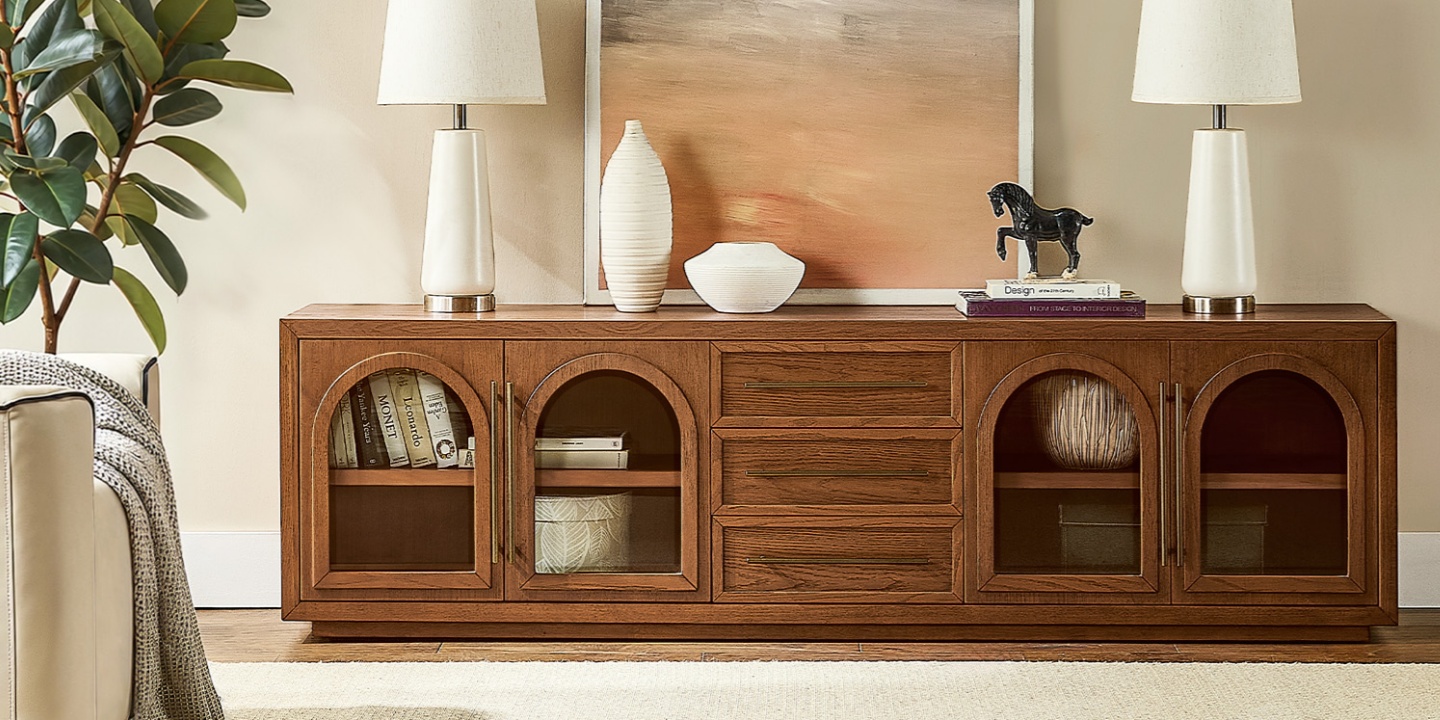
The Lira 84" Oak Media Console combines American solid oak with engineered wood and oak veneers. It includes four cord cutouts, dovetail drawer construction, and soft-close slides, with storage that keeps much of the equipment out of sight. It is designed to accommodate TVs up to 85 inches.
Solid wood still benefits from normal furniture care. Keep the surface away from prolonged harsh sunlight, dust it with a dry cloth, and avoid excessive moisture.
Ash and Ash Veneer
Ash has a lighter visual character than many darker hardwood finishes and works particularly well with furniture that uses slim legs or a more open silhouette.
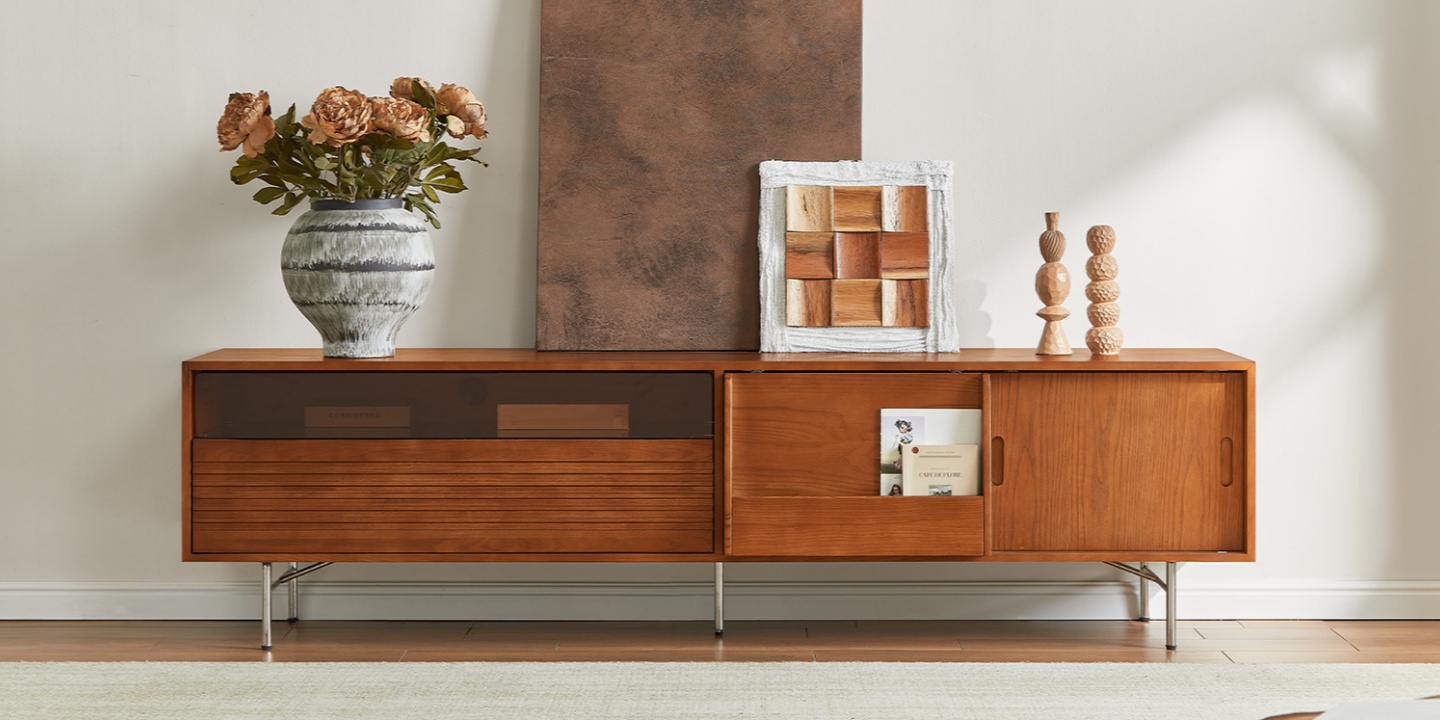
The Frode 84" MCM Media Console uses a rubber-wood and plywood core with American ash veneers and metal legs. It has five cord cutouts, sliding solid-wood doors, and storage for media equipment. It is designed for TVs up to 85 inches.
The five rear cutouts make it particularly useful for a setup with several connected devices.
Engineered Wood With Wood Veneer
Engineered wood can provide a consistent surface and can be combined with wood veneer for a natural wood appearance. It is often used alongside solid wood components in modern furniture construction.
For a TV stand, the more important questions are whether the back panel provides enough cable access, whether the cabinet has sufficient storage space, and whether the construction suits the equipment you plan to store.
TV Stands With Built-In Cable Management
If you are comparing options, these three Hernest media consoles offer different approaches to cable management.
Marisol 84" Oak Media Console
The Marisol combines American solid oak with oak veneer and a fluted front. Four rear cord cutouts help route cables from the equipment compartments toward the wall outlet.
It supports TVs up to 85 inches and works well when you want a substantial wood console with enclosed storage and a more textured front.
Lira 84" Oak Media Console
The Lira uses American solid oak together with engineered wood and oak veneers. Four cord cutouts provide rear cable access, while drawers with dovetail construction and soft-close slides add organized storage.
Its arched cabinet doors give it a distinctly mid-century character without making the cable-management features visually obvious.
Frode 84" MCM Media Console
The Frode takes a lighter approach with ash veneers, a rubber-wood and plywood core, metal legs, and sliding wood doors.
It has five cord cutouts, giving it one more rear cable path than the two oak consoles above. The elevated design can also make cleaning underneath the console easier.
The three options are not identical, so the right choice depends on your TV size, number of devices, preferred storage style, and overall room design.
Wall-Mounted TV vs. TV on a Stand: Two Cable Plans
Cable management changes depending on where the TV is installed.
If Your TV Sits on the Stand
This is the simplest setup. Route the TV's cables and connected devices through the rear openings of the console, then direct the bundle toward the wall outlet.
A partially enclosed or closed-back console can hide most of the wiring without requiring changes to the wall.
If Your TV Is Wall-Mounted
A wall-mounted TV creates a different problem because the cables need to travel vertically between the TV and the equipment below.
For a renter-friendly setup, a paintable cable raceway can conceal the cable bundle on the wall. The raceway can then lead into the TV stand, where the remaining cables can be organized behind the furniture.
For permanent in-wall installations, use products and installation methods specifically rated for in-wall use and follow applicable local electrical requirements. A standard flexible power cord should not simply be hidden inside a wall. If the installation requires changes to household electrical wiring, consult a licensed electrician.
Renter-Friendly Ways to Hide TV Cables
You can improve a media wall without drilling into the wall.
Paintable Cable Raceways
A flat, adhesive raceway can cover a vertical cable run between a wall-mounted TV and the console. Many can be painted to match the wall.
Furniture Placement
For a TV mounted above a console, the furniture itself can hide the lower part of the cable run. A console with rear cable openings makes it easier to feed wires from the wall into the storage area.
Cable Management Boxes
A cable management box can hide a power strip and bulky adapters behind or inside the console. Choose a size that allows the components to fit without excessive crowding or heat buildup.
Velcro Ties and Adhesive Clips
Reusable Velcro ties are useful for grouping cables by device. Adhesive clips can keep individual runs close to the back of the furniture and prevent them from hanging toward the floor.
Decorative Coverage
A basket, plant, or other piece of decor can sometimes conceal the point where cables turn toward the wall outlet. This should complement proper cable routing rather than replace it.
TV Cable Management Safety Tips
Cable management is mostly about appearance and convenience, but the setup should also be safe.
Keep power cords away from sharp edges, excessive heat, and areas where pets or children can easily pull or chew them. Do not overload power strips, and avoid tightly packing electronics into a cabinet with no ventilation.
Heat is especially important with AV receivers and gaming consoles. If an electronic device becomes unusually hot during use, improve airflow rather than simply closing the cabinet door.
For wall-mounted TVs, be careful with any installation involving concealed wiring. Low-voltage signal cables and household power wiring have different requirements, so use appropriately rated products and follow local electrical codes.
How to Choose the Right TV Stand for Your Setup
Once cable management is taken care of, choosing the right console becomes much easier.
First, measure your wall and the actual width of your TV. TV sizes are measured diagonally, so an 85-inch TV is not 85 inches wide. The TV's actual dimensions and the distance between its feet matter when determining whether it will sit securely on a console.
An 84-inch console can work well with an 85-inch TV, but you should always check the TV manufacturer's dimensions and base footprint before buying.
Next, count your permanent devices and compare that number with the available cord cutouts. If you have five devices that need separate cable paths, a console with five cutouts gives you more flexibility than one with only two.
Then consider the storage configuration. Open shelving provides quick access to equipment, while closed cabinets and drawers make it easier to keep cables, remotes, and accessories out of sight.
Finally, think about ventilation. A clean-looking closed cabinet is only a good choice if your electronics have enough room and airflow.
The best TV stand with cable management is not necessarily the one with the most features. It is the one whose cable openings, storage, ventilation, and dimensions match the equipment you actually use.
FAQs
How do I organize cables behind a TV stand?
Start by listing every device and its cables. Route each cable through the stand's rear cutouts, group cables by device with reusable Velcro ties, label both ends when necessary, and store excess length inside an appropriate cabinet or cable-management area. Keep heat-producing electronics well ventilated and avoid tightly packing cables around them.
What should I look for in a TV stand with cable management?
Look for multiple rear cord cutouts, enough depth for your equipment and power strip, accessible cable paths, enclosed storage if you want to hide components, and ventilation for heat-producing electronics. The number and placement of the cutouts should match your setup.
Can I hide TV cables without drilling into the wall?
Yes. For a TV sitting on a console, route the cables through the rear of the furniture. For a wall-mounted TV, a paintable adhesive cable raceway can hide the vertical cable run without cutting into the wall. Use an appropriate in-wall-rated solution for permanent concealed wiring.
Should a TV stand be wider than the TV?
Generally, yes. A console that extends beyond the TV usually looks more balanced and provides additional room for equipment. However, compare the console's width with the TV's actual dimensions rather than relying only on the advertised screen size. Also check the width and placement of the TV's feet.
How do built-in cable cutouts and grommets work?
Cutouts are openings in the back panel that allow cables to pass through the furniture. Grommets cover the edges of those openings and can help protect cable jackets. Together, they create a cleaner route for power and signal cables.
How many cord cutouts do I need?
Count the devices that need to send cables through the rear of the console. A TV, soundbar, game console, streaming box, and router could require four or five cable paths. Choosing a stand with a few extra cutouts gives you more flexibility if you add equipment later.
How do I hide a power strip and extra cable length?
Keep the power strip off the floor when the furniture design allows it, then route the cables through the rear openings. Excess cable can be loosely coiled and stored inside an appropriate cabinet or cable-management area. Avoid tightly bundling or overheating electrical components.
What material is best for a media console with cable management: solid wood or engineered wood?
Neither material automatically provides better cable management. The more important factors are the back-panel design, number of cutouts, storage space, and ventilation. Solid oak offers a natural hardwood construction, while engineered wood with veneer can provide a consistent wood appearance. Choose based on your durability, style, and budget priorities.
Will a media console with closed storage overheat my devices?
It can if the compartment is too small or poorly ventilated. Heat-producing electronics such as AV receivers and gaming consoles need adequate airflow. Look for ventilation openings, slatted doors, or other airflow paths, and follow the equipment manufacturer's clearance recommendations.