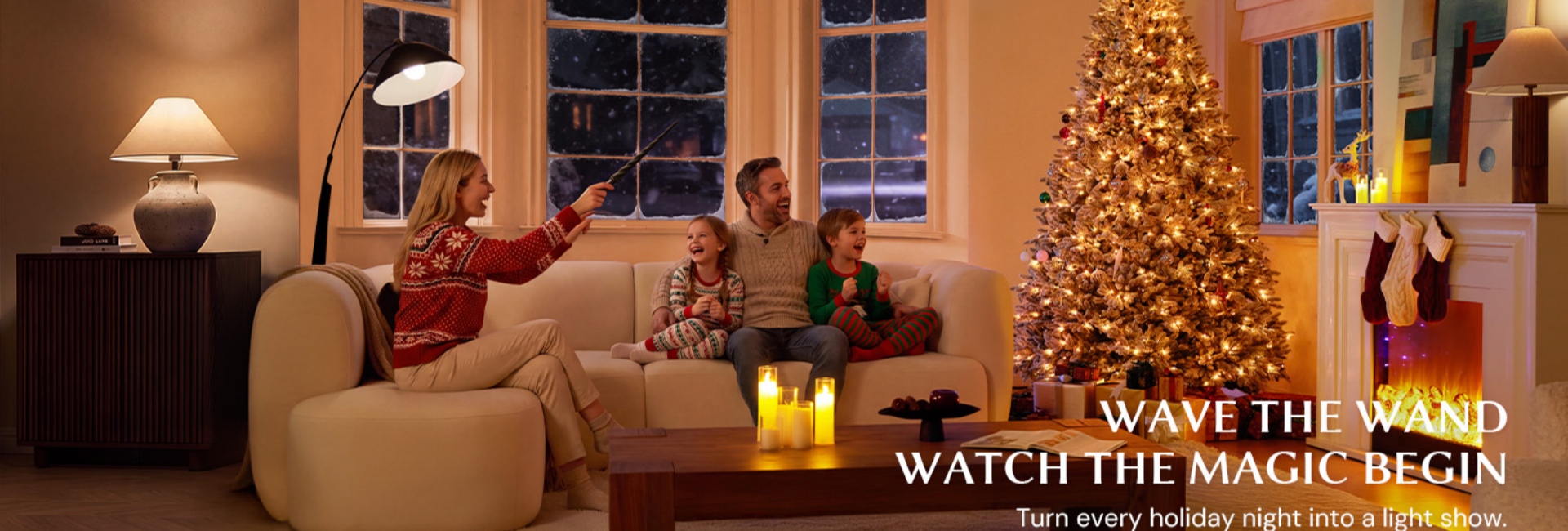
If you have a Hernest Magic Wand Christmas tree, you don't need to memorize 18 different commands to control its lighting. The system uses 8 simple magic wand gestures to activate specific effects, move through the lighting library, and turn the lights off.
The trick is knowing which movement does what—and how to perform it so the infrared receiver recognizes your command.
This guide walks through all 8 magic wand gestures and 18 light effects, explains the difference between a swipe and a shape gesture, and gives you practical troubleshooting steps if the wand doesn't respond. Whether you're setting up the tree for the first time or handing the wand to your kids, you'll know exactly what to do.
Table of Contents
- Quick Answer: What Are the 8 Magic Wand Gestures?
- How the 8 Magic Wand Gestures Control 18 Light Effects
- The 8 Magic Wand Gestures Explained
- How to Explore All 18 Light Effects
- How to Perform Magic Wand Gestures Correctly
- Magic Wand Gesture Troubleshooting
- Master the Magic Wand and Make Every Light Show Your Own
- FAQs
- What Are the 8 Magic Wand Gestures?
- How Many Light Effects Does the Hernest Magic Wand Have?
- How Do I Switch Between Christmas Tree Light Effects?
- Which Magic Wand Gestures Activate Snow and Fireworks?
- How Far Away Does the Magic Wand Work?
- Why Isn't My Magic Wand Recognizing My Gestures?
- Why Does the Magic Wand Vibrate Three Times?
- Can I Turn the Christmas Tree Lights Off With the Wand?
Quick Answer: What Are the 8 Magic Wand Gestures?
The Hernest Magic Wand uses eight motion commands. Five provide direct shortcuts to specific lighting effects, two navigate through the lighting library, and one turns the lights off.
There are 18 total lighting effects. The five effects above have dedicated gesture shortcuts, while the left and right swipes can be used to browse the lighting library.
How the 8 Magic Wand Gestures Control 18 Light Effects
8 Gestures vs. 18 Light Effects
The most important thing to understand is that 8 gestures do not equal 8 lighting effects.
The Hernest Magic Wand recognizes eight different movements, but those movements serve different purposes.
Five are direct shortcuts:
↓ activates Snow
↑ activates Fireworks
∨ activates 3D Flag
< activates 3D Rainbow
> activates Color Sweep
Two are navigation commands:
← moves to the previous lighting effect
→ moves to the next lighting effect
The final gesture:
∧ turns the tree lighting off
That means you can access the complete 18-effect lighting library without having to memorize 18 separate gestures.
Think of the five shape or directional shortcuts as quick-access commands. The left and right swipes work more like the previous and next buttons on a music player.
How Magic Wand Gesture Recognition Works
The Magic Wand uses infrared signal technology, so positioning matters.
Before making a gesture, point the wand toward the tree's LED receiver and keep the signal path clear. We recommends using the wand from approximately 3 to 13 feet away, with gestures performed within an approximately 10- to 20-inch movement range.
We also recommend holding it still for about 0.5 seconds before and after each gesture. Correctly recognized commands provide haptic feedback from the wand.
A reliable rhythm is:
Point → Pause → Gesture → Pause → Check the response
If a gesture isn't recognized, make the movement clearer before making it larger or faster. Most successful gestures are controlled rather than dramatic.

The 8 Magic Wand Gestures Explained
Swipe Down ↓ — Snow Effect
Start with the simplest movement: Swipe Down (↓) activates the Snow effect.
Point the wand toward the receiver, pause briefly, and move it clearly downward. Keep the movement controlled and within the recommended gesture range.
This is a good first gesture to teach because it requires only one directional movement. If you're introducing the Magic Wand to a child or another family member, Snow is an easy place to start.
If nothing happens, check the receiver and your distance before repeating the gesture several times.
Swipe Up ↑ — Fireworks Effect
Swipe Up (↑) activates Fireworks.
Point toward the receiver, pause, and make one clean upward movement. The important part is the direction: don't turn the gesture into a large arc or combine it with another motion.
Fireworks is also one of the easiest commands to demonstrate because the relationship between the movement and the effect is straightforward.
Once Snow and Fireworks work consistently, you're ready to try the navigation gestures.
Swipe Left ← — Previous Light Effect
A Swipe Left (←) moves to the previous lighting effect.
Unlike the downward and upward swipes, this gesture isn't permanently assigned to one lighting show. Instead, it lets you move backward through the 18-effect library.
If you just passed a lighting mode you liked, swipe left to return to it.
The movement should be a simple horizontal swipe. Don't draw an angle or shape, because that may be interpreted as a different command.
Swipe Right → — Next Light Effect
A Swipe Right (→) moves to the next lighting effect.
This is the easiest way to explore the full library when you don't know which effect you want. Swipe right, wait for the lighting mode to change, and continue until you find one that suits the room.
There is one important distinction to remember:
→ Swipe Right = Next effect
> Draw Right Angle = Color Sweep
They look similar on paper, but they are different gestures. A straight horizontal movement navigates; the angled shape activates Color Sweep.
Draw ∨ — 3D Flag Effect
The upward V (∨) activates 3D Flag.
Unlike a swipe, this command requires you to draw a recognizable shape. Start at the upper-left position, move down toward the center, then move back up toward the upper-right position.
Keep the shape compact and deliberate.
If the wand doesn't recognize it, slow down rather than making the movement dramatically larger. A clear shape is easier to reproduce consistently than a fast, exaggerated one.
Draw < — 3D Rainbow Effect
Draw a left-pointing angle (<) to activate 3D Rainbow.
This gesture can be confused with the previous-effect swipe because both move toward the left. The difference is the shape.
A ← is one straight movement.
A < consists of two connected movements that create an angle.
If the tree moves to the previous effect instead of activating 3D Rainbow, make the two sides of the angle more obvious and pause briefly before trying again.
Draw > — Color Sweep Effect
The right-pointing angle (>) activates Color Sweep.
This is another gesture where precision matters more than speed.
Remember the difference:
→ = move to the next effect
> = activate Color Sweep
When teaching the wand to someone new, introduce the straight right swipe first. Once that movement is familiar, practice the angled version separately.
Draw ∧ — Turn Off the Lights
The final gesture is the upward V (∧), which turns the tree lighting off.
Draw a clear V-shaped movement in reverse: start low, move upward toward the center, and finish by moving toward the upper side.
This command is particularly useful when you want to stop the lighting show without walking over to the tree or reaching behind furniture.
Keep in mind that turning the lights off with the wand is not the same as disconnecting the tree from power. For extended periods away from home, follow normal holiday electrical safety practices and disconnect or switch off the tree as appropriate.
How to Explore All 18 Light Effects
The 5 Effects With Dedicated Gestures
Five of the 18 lighting effects have dedicated Magic Wand shortcuts:
These are the fastest effects to access because the gesture takes you directly to the corresponding mode.
The other lighting modes don't require additional gestures. You can browse the complete library with ← Previous and → Next.
The 18 Effects You Can Browse With ← and →
The Hernest Magic Wand provides access to 18 total lighting effects. The five effects above have dedicated shortcuts, while the left and right swipes let you navigate through the complete collection of modes.
The 18 effects are:
3D Flag
Carnival Glow
Santa Hat
Soft Blend
Color Stream
Santa Glow
Prism Flow
Halo Rise
Vintage
Holiday Spark
Snowdrift
Rainbow Waves
Snow
Fireworks
Rainbow Drift
Color Sweep
Rainbow
3D Rainbow
The important distinction is simple:
5 effects have dedicated gestures.
18 effects are available in total.
← and → let you browse the lighting library.
You don't need to memorize the entire list. Start with the five shortcuts, then use the navigation swipes whenever you want to explore.
Complete 8-Gesture & 18-Effect Cheat Sheet
Save this as your quick reference while you're learning the wand:
The easiest rule to remember:
Straight swipes move or trigger simple commands. Shape gestures activate specific effects or turn the lights off.
How to Perform Magic Wand Gestures Correctly
Point the Wand at the LED Receiver
The wand needs a clear infrared path to communicate with the tree.
Point it toward the LED receiver before starting the gesture. Avoid placing decorations directly in front of the receiver.
This is particularly easy to overlook after the tree has been fully decorated. A ribbon, oversized ornament, or dense cluster of branches can interfere with the signal path.
If the wand worked before decorating but becomes inconsistent afterward, check whether the receiver is still unobstructed.
Use the Correct Distance and Movement Range
Hernest recommends operating the Magic Wand approximately 3 to 13 feet from the receiver.
Your actual gesture should stay within an approximately 10- to 20-inch movement range.
You don't need to swing your whole arm. A controlled movement is easier to repeat and gives the gesture-recognition system a clearer motion pattern.
If you're standing too close, too far away, or moving the wand outside the recommended range, adjust your position before assuming the wand has a problem.
Pause Before and After Each Gesture
The pause is easy to overlook, but it can make gesture recognition more consistent.
Hold the wand still for about 0.5 seconds before the movement, perform one clear gesture, then hold it still again.
Think:
Hold → Move → Hold
rather than:
Wave → immediately wave again → wave again
That small pause gives the system time to recognize one command before you send another.
Use One Clear Gesture at a Time
Avoid combining gestures.
For example, if you're trying to draw >, don't rush through the two sides of the shape. Make each direction deliberate enough that the complete angle is recognizable.
The same principle applies when browsing effects. Swipe right once, wait for the response, then swipe again if you want to continue.
If you're troubleshooting recognition, consistency is more useful than speed.
Practice Simple Gestures First
If you're learning all eight commands, start with the four easiest:
↓ Snow
↑ Fireworks
→ Next
← Previous
These teach the basic directional movements.
Once those feel natural, practice:
∨ 3D Flag
< 3D Rainbow
> Color Sweep
∧ Off
This progression is especially useful for families. Adults can handle battery installation and initial setup, while children can learn the gestures one at a time.
Magic Wand Gesture Troubleshooting
Why Is My Magic Wand Not Recognizing a Gesture?
Don't assume the wand is defective. Check the simplest variables first.
Make sure the batteries are installed correctly.
Confirm that the wand is powered.
Check that the Christmas tree is receiving power.
Make sure the receiver is visible.
Move within the recommended 3- to 13-foot operating range.
Keep the gesture within the recommended 10- to 20-inch range.
Pause before and after the gesture.
Perform one clear movement at a time.
If a shape gesture fails repeatedly, return to a basic swipe. If the swipe works but the shape doesn't, the issue is more likely the gesture itself than the tree's power or receiver.
Why Does the Wand Vibrate but the Light Does Not Change?
If the wand provides feedback but the lighting doesn't appear to change, check the tree's connections and current lighting mode.
During installation, the integrated light connectors between the tree sections need to be connected correctly. The LED controller also needs to be positioned as instructed so the receiver can communicate properly.
A subtle lighting effect may not look dramatically different from the previous mode, so give the tree a moment before sending another command.
If the problem occurs immediately after assembly, inspect the section connections before troubleshooting the gesture itself.
Why Do Some Gestures Work Better Than Others?
Directional swipes are naturally easier to reproduce than geometric shapes.
A ← requires one continuous direction. A < requires two connected movements that form a recognizable angle.
That's why it's normal for someone to learn the four directional commands before mastering the shape gestures.
If you're having trouble with <, >, ∨, or ∧, slow the movement down and make the shape more deliberate. You don't need a larger gesture—you need a clearer one.
What Should I Check When the Wand Stops Responding?
If the Magic Wand worked earlier and suddenly stops responding, start with the batteries.
Hernest specifies that the wand uses two AAA alkaline batteries. One vibration after proper installation indicates that the wand is awake, while three distinct vibrations indicate low battery status.
If fresh batteries don't solve the problem, check:
Tree power
Receiver visibility
Distance from the tree
Light-section connections
Gesture timing
For a recently assembled tree, inspect the connections between the tree sections as well. A gesture problem can sometimes be caused by an installation issue rather than the wand itself.
Master the Magic Wand and Make Every Light Show Your Own
Start With the 4 Basic Swipe Gestures
You don't need to learn all eight gestures in one sitting.
Start with:
↓ Snow for a quieter lighting effect.
↑ Fireworks when you want something more energetic.
→ Next when you're exploring the lighting library.
← Previous when you've gone past an effect you like.
Once those four movements become familiar, the rest of the system is much easier to understand.
Practice the 4 Shape Gestures
Next, practice the four shape-based commands:
∨ → 3D Flag
< → 3D Rainbow
> → Color Sweep
∧ → Off
Don't worry about making the shapes dramatic. Make them recognizable.
If a gesture isn't registering, slow down, simplify the movement, and check your position relative to the receiver.
The goal isn't to wave the wand as theatrically as possible. It's to make a movement the system can recognize consistently.
Discover Your Favorite Christmas Light Effects
Once you've learned the controls, the 18 lighting effects become less about memorizing names and more about finding the right setting for the moment.
Use the direct gestures when you already know what you want. Use ← and → when you're in the mood to explore.
A quiet evening might call for Snow. A Christmas morning might feel right with Fireworks. When family and friends gather, let everyone take a turn choosing a favorite.
That's where the Magic Wand becomes more than a lighting controller. The gesture itself becomes part of the holiday experience.
For families looking for an interactive artificial Christmas tree with 100% PE foliage, integrated RGB lighting, and 18 lighting effects controlled through a Magic Wand, Hernest brings those features together in one holiday centerpiece.
Once you know the eight gestures, there is no need to reach behind the tree every time you want to change the atmosphere.
Point. Pause. Cast.
Then let the lights do the rest.
FAQs
What Are the 8 Magic Wand Gestures?
The eight magic wand gestures are Swipe Down, Swipe Up, Swipe Left, Swipe Right, Downward V, Left Angle, Right Angle, and Upward V. They activate specific lighting effects, navigate the lighting library, or turn the lights off.
How Many Light Effects Does the Hernest Magic Wand Have?
The Hernest Magic Wand provides access to 18 total lighting effects. Five effects have dedicated gesture shortcuts, while the Swipe Left and Swipe Right gestures let you navigate through the complete lighting library.
How Do I Switch Between Christmas Tree Light Effects?
Use Swipe Right (→) to move to the next lighting effect and Swipe Left (←) to move to the previous effect. These two gestures allow you to browse all 18 lighting modes without memorizing a separate gesture for each one.
Which Magic Wand Gestures Activate Snow and Fireworks?
Use Swipe Down (↓) to activate Snow and Swipe Up (↑) to activate Fireworks. These are two of the simplest directional gestures and are good starting points for anyone learning the Magic Wand.
How Far Away Does the Magic Wand Work?
Hernest recommends operating the Magic Wand approximately 3 to 13 feet from the LED receiver. Keep a clear signal path and perform each gesture within an approximately 10- to 20-inch movement range for more reliable recognition.
Why Isn't My Magic Wand Recognizing My Gestures?
Check the batteries, tree power, receiver visibility, operating distance, gesture size, and timing. Hold the wand still for about 0.5 seconds before and after each gesture, and perform one clear movement at a time. If directional swipes work but shape gestures do not, slow down and make the shape more distinct.
Why Does the Magic Wand Vibrate Three Times?
Three distinct vibrations indicate that the Magic Wand's batteries are low. Replace the two AAA alkaline batteries with a fresh pair, then try the gesture again.
Can I Turn the Christmas Tree Lights Off With the Wand?
Yes. Draw the ∧ upward V gesture to turn the Christmas tree lights off. For overnight use or when leaving home for an extended period, follow standard holiday-light safety practices and make sure the tree lighting is switched off.